Helm quick start
Keep your Helm next to you while you set up, because the app asks you to tap it.
Helm for Mac blocks distracting apps and websites on your computer. It signs in with the same account as Helm on your phone.
Get the app

Open the app and follow the setup. It asks a few questions about your screen time, then has you create an account, turn on Screen Time, link your Helm with a tap and make your first mode.
Open the app and follow the setup. It asks you to sign in, connect your Helm and turn on a few permissions.
Helm needs macOS 14 or later and runs on Intel and Apple silicon Macs.
- Open Helm.dmg from your Downloads folder.
- Drag Helm into your Applications folder.
- Open Helm from Applications.
Sign in with your email. It's the same account as Helm on your iPhone, and Helm emails you a 6-digit code instead of using a password.
Your 14-day free trial starts when you sign in, with no card. After your first session, Helm asks for a card, and you can choose Not now.
Pick a difficulty
Your Helm doesn't tap to a Mac. On a Mac, the difficulty decides how hard a session is to end early. Medium is the default. Set your own default in Settings, or pick one for a session or a schedule. Helm remembers your last pick for each mode.
- Easy
- End anytime after a 5-second countdown. Breaks as you set them.
- Medium
- Ending early makes you wait, longer each time. The wait starts at 10 seconds and goes up to a minute.
- Hard
- A long wait to end early. No exceptions mid-session. The wait starts at a minute and goes up to 5, with at most 2 breaks of 5 minutes.
- Hardcore
- No ending early, no breaks you take yourself, no exceptions. One lifeline if you have to get out.
How to tap your Helm
Hold the top edge of your iPhone, near the camera, against the Helm's silicone crown. Keep it still for a second or two until the app responds.
Hold your Helm against the center of the back of your phone, or near the top. Keep it still for a second or two until the app responds. If it doesn't read, try near the camera, because some phones put the NFC reader there.
The first tap links the Helm to your account. When it works, the app shows Linked to your account.
The first tap links the Helm to your account. When it works, the app shows Your Helm is linked to your account.
If your Helm won't read
Unlock your phone, take off a thick or metal case, and hold the top edge of your iPhone, not the back, against the Helm. Keep it still until the app responds.
Unlock your phone and make sure NFC is on in your phone's settings. Take off a thick or metal case. Try the center of the back, then near the top and the camera, and keep it still.
Is my Helm connected?
Helm never needs charging and doesn't stay connected to your phone. Your phone reads it only when you tap it.
To see the Helm on your account, go to Settings › Account › Helm devices. To test it, start a session and end it with a tap.
If the app says That's not your Helm when you end a session, you tapped something that isn't a Helm, or a Helm that isn't paired with this phone.
To see the Helm on your account, go to Settings › Sessions › Helm device. To test it, start a session and end it with a tap.
Allow permissions
Helm blocks apps through Apple's Screen Time. Tap ALLOW SCREEN TIME when the app asks. Your iPhone needs a passcode and an iCloud sign-in for this step to work. If you skipped it, tap Allow Screen Time in Settings, under On this iPhone.
On first run Helm asks for these. Continue stays off until each required one says On.
- Browser control
- Closes blocked tabs, in browsers Helm can control directly. macOS asks you to let Helm control your browser.
- Helm Background
- Required. Starts schedules and reopens Helm if it quits during a session.
- Focus tracking
- For Firefox, Little Arc and other browsers Helm can't control directly. Required when one of them is your default browser. macOS opens Accessibility settings, and you drag Helm into the list.
Website blocking works in Safari, Chrome, Edge, Brave, Arc, Dia, Opera and Opera GX. Helm asks to send notifications the first time you save a schedule.
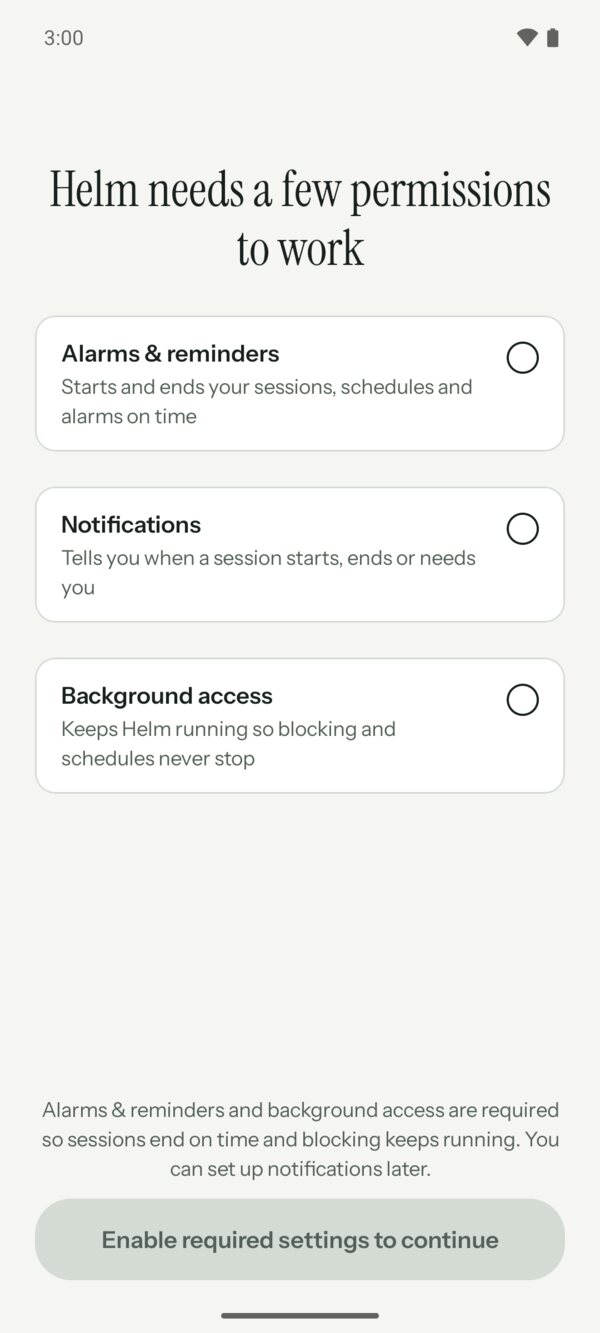
- Alarms & reminders starts and ends your sessions, schedules and alarms on time. Required.
- Notifications tell you when a session starts, ends or needs you. Optional.
- Background access keeps Helm running so blocking and schedules don't stop. Setup lets you skip it. Turn it on later in Settings › Phone readiness, where it's called Keep Helm running.
Next, Helm asks to connect to Accessibility, which is how it sees which app is open and blocks it. On the next screen, find Helm App Blocker and turn on Use Helm App Blocker. You can choose Not now, but you can't start a session until it's on.
Create a mode
A mode is the set of apps Helm locks during a session. Open the Modes tab to make one. While you have no modes, it shows two examples and Create a new mode. After that, tap New mode.
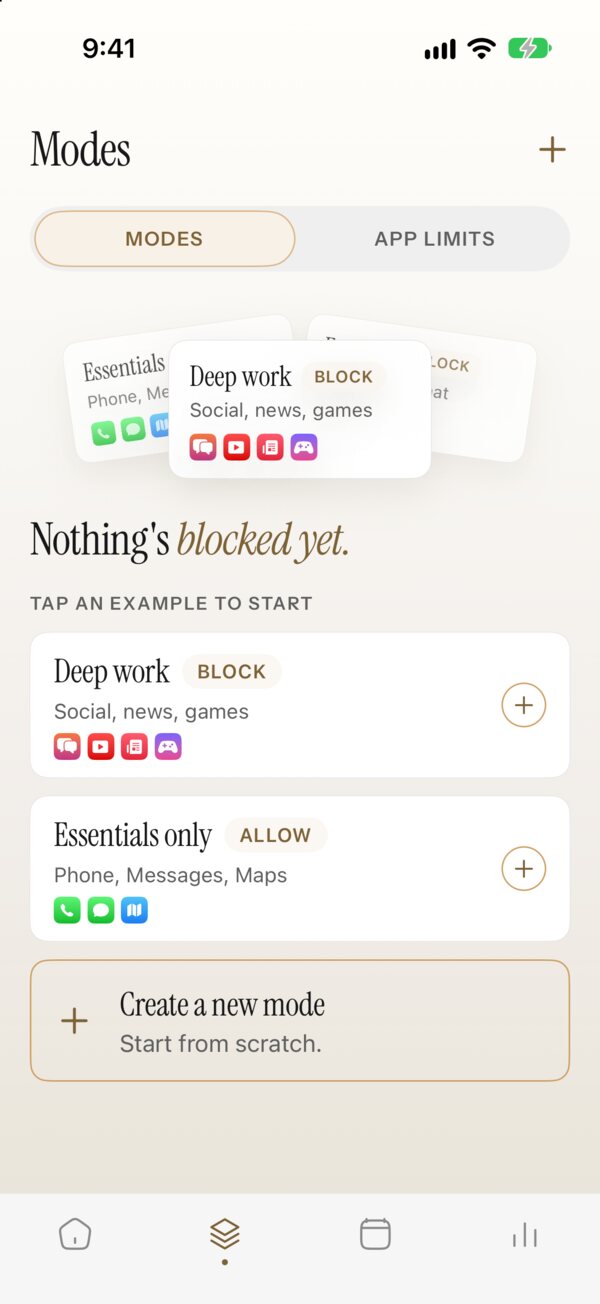
- Deep work is a Block example. Tap it to start from it.
- Essentials only is an Allow example. Only Phone, Messages and Maps stay open.
- Create a new mode starts from scratch.
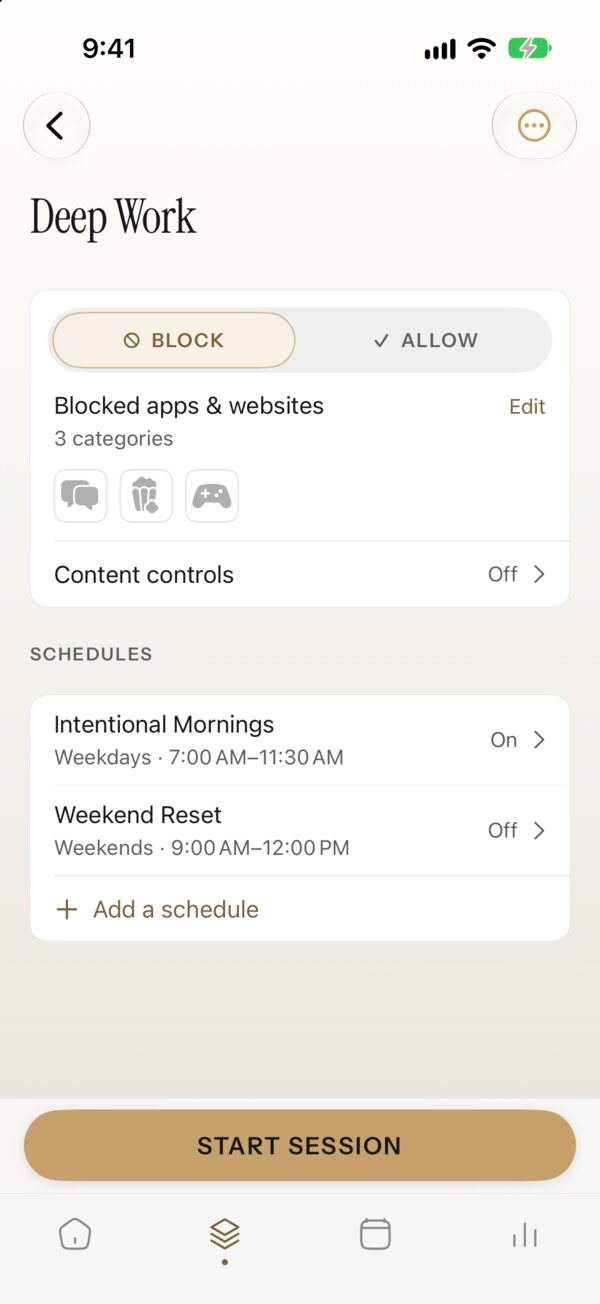
- The mode's name. Call it what you'll be doing.
- BLOCK locks the apps you choose. ALLOW locks everything except the apps you choose.
- Tap Edit to choose the apps and websites.
- Content controls can also block adult websites, installing apps and in-app purchases while the mode is on.
- Schedules that run this mode. Add a schedule to start it automatically.
- START SESSION starts this mode now.
Tapping Edit opens Apple's app picker.
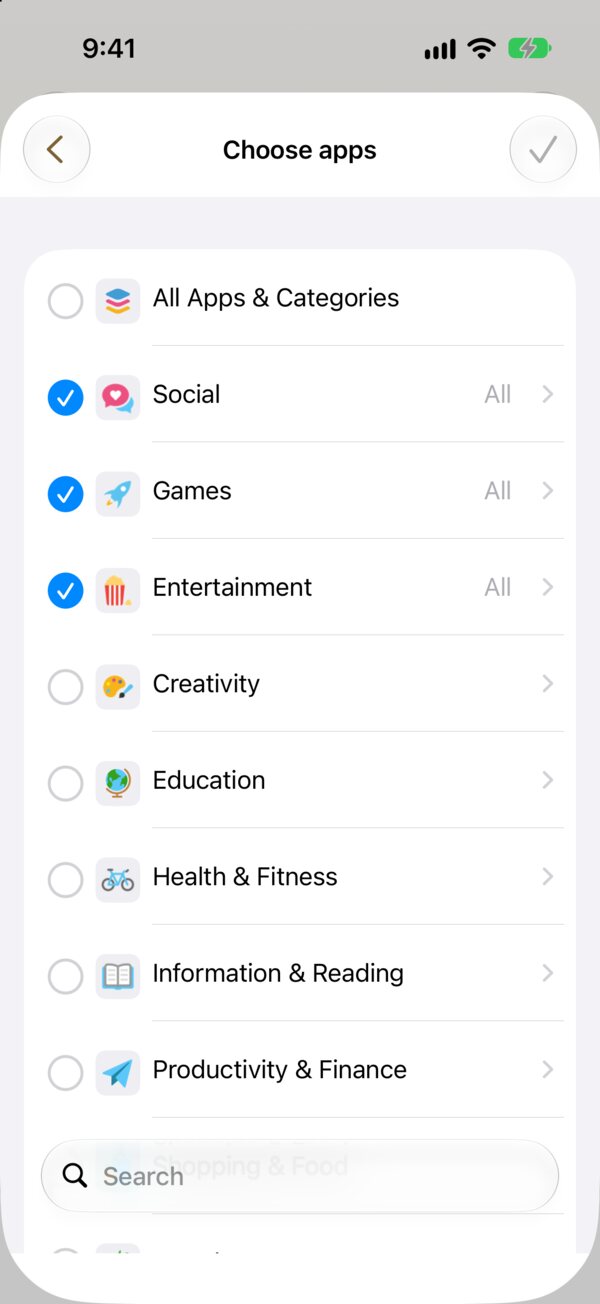
- Tick a category to include every app in it.
- Tap the arrow to open a category and pick single apps.
- Search for an app or website by name.
- Tap the tick to save.
Limit an app instead of blocking it
The Modes tab also has APP LIMITS. Give an app a daily allowance of time, opens or steps. Each limit has its own difficulty, from a 5-second wait to locked until the limit resets.
The Modes tab also has APP LIMITS. Give an app an allowance of time or opens that resets daily or weekly. Each limit has its own difficulty, from a 5-second wait to locked until it resets.
Open Modes and make a new mode. Block mode blocks what you pick, and everything else stays open. Mission mode keeps only what you pick open, and anything else shows your intention instead. Search for a site or app and add it to the mode's list. If you edit the mode that's running, the change applies to your next session.
During a session, a blocked website shows Helm's block page, and a blocked app quits when you open it.
A mode is the set of apps Helm locks during a session. Open the Modes tab to make one. While you have no modes, it shows examples you can tap, like Deep work.
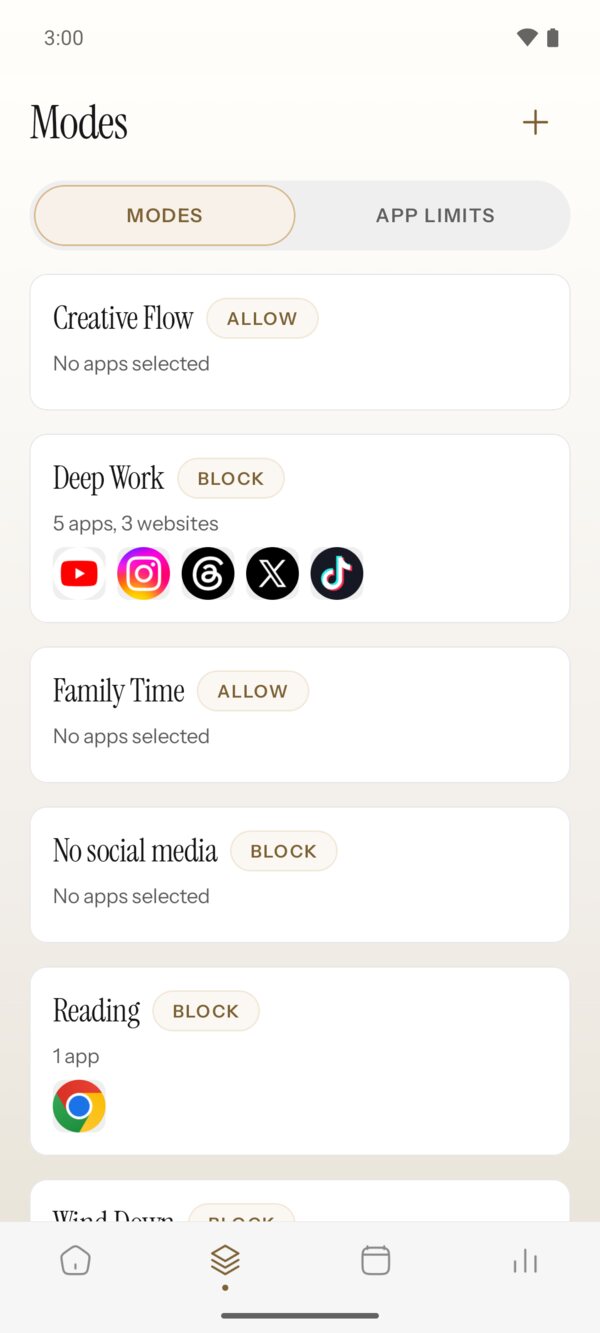
- Tap + to make a new mode.
- Tap a mode to edit it. Its tag says whether it blocks or allows.
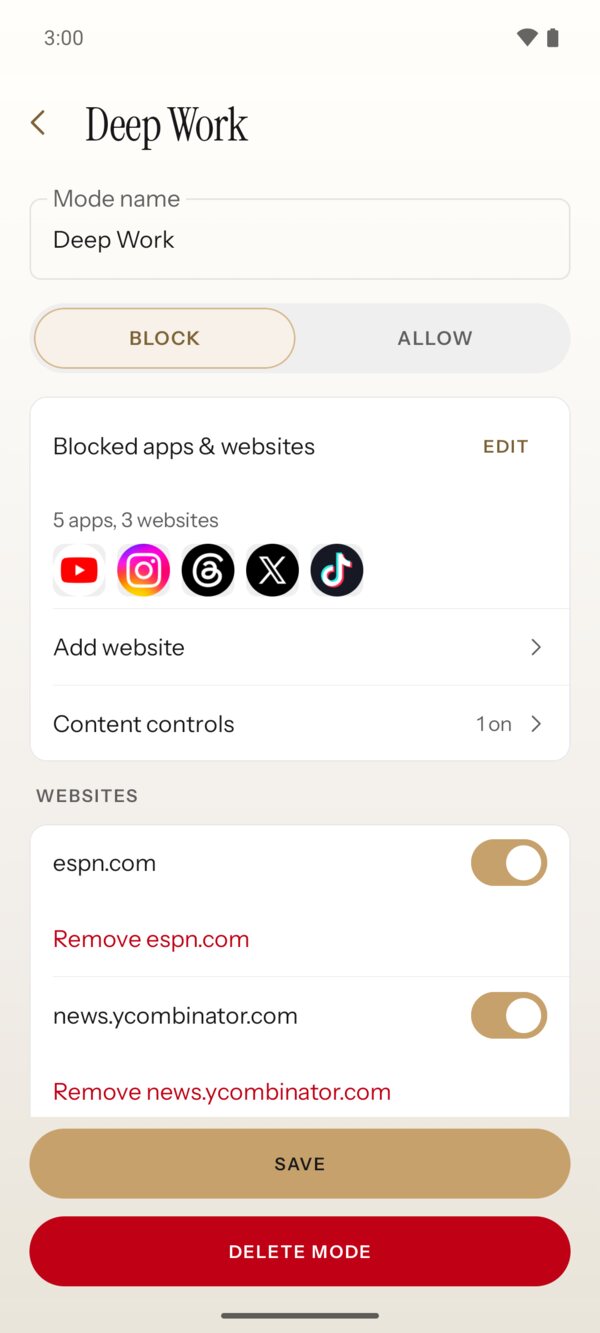
- The mode's name. Call it what you'll be doing.
- BLOCK locks the apps you choose. ALLOW locks everything except the apps you choose.
- Tap EDIT to choose apps.
- Add website blocks a site in your browser.
- Content controls can block adult websites while the mode is on, in Chrome, Firefox, Edge, Samsung Internet, Opera, Brave and DuckDuckGo.
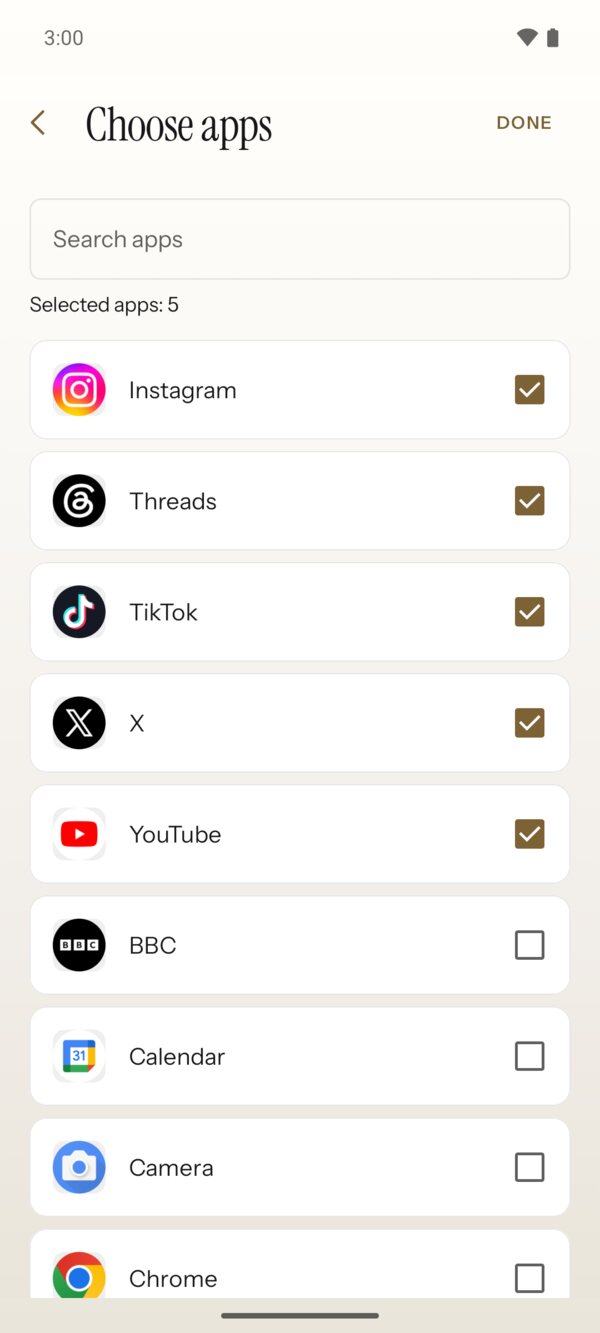
- Search for an app by name.
- Tick each app to include it.
- Tap DONE when you're finished.
Start a session
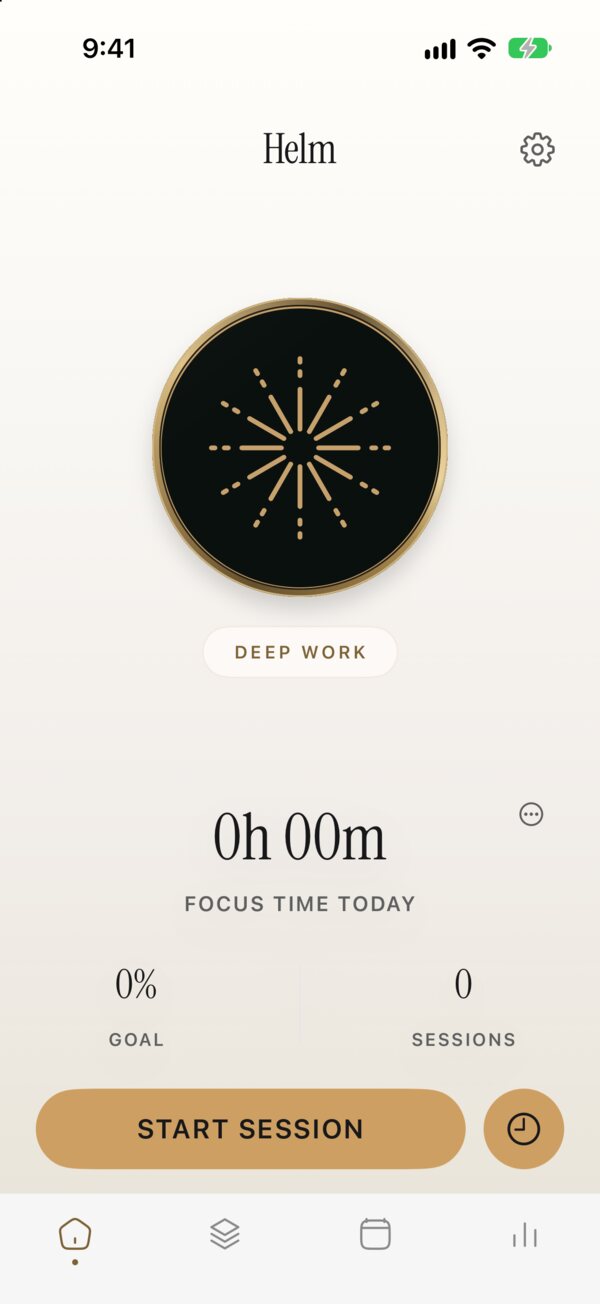
- The mode you'll start. Tap it to switch modes.
- START SESSION opens the sheet below. The session runs until you end it.
- The clock starts a timer instead: 45 minutes, 1 hour, 2 hours, or any length from 15 minutes to 24 hours. A timer ends on its own.
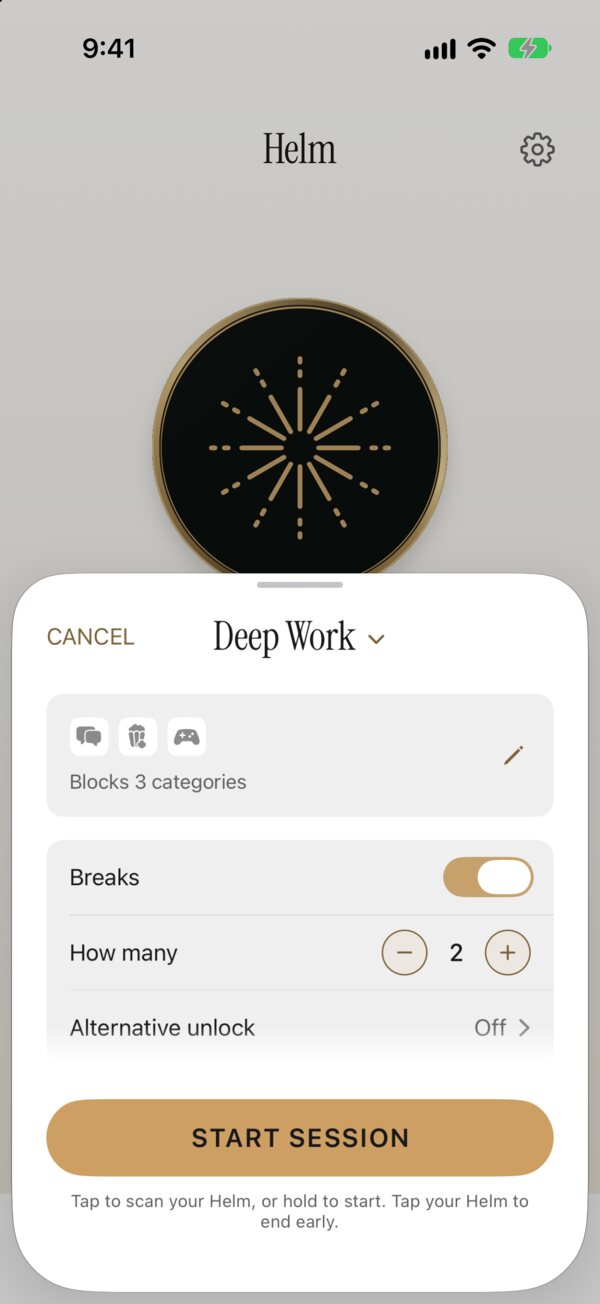
- What the mode blocks. The pencil changes it.
- Turn on Breaks and set how many you'll allow, up to 4. Each one lasts 15 minutes.
- Alternative unlock sets goals that let you end without your Helm: a step count, exercise minutes or a minimum time. Steps and exercise use Apple Health.
- Hold START SESSION for two seconds to start. Or tap it once and hold your phone to your Helm.
Open a blocked app during a session and you'll see Helm's shield.
On the dashboard, type what you're working on, pick a mode and a length from 25 to 90 minutes, then click Start focus. A short countdown gives you a moment to cancel.
The Session tab has more options, like open-ended sessions, breaks and ambient sound. While a session runs, Helm stays in the menu bar.
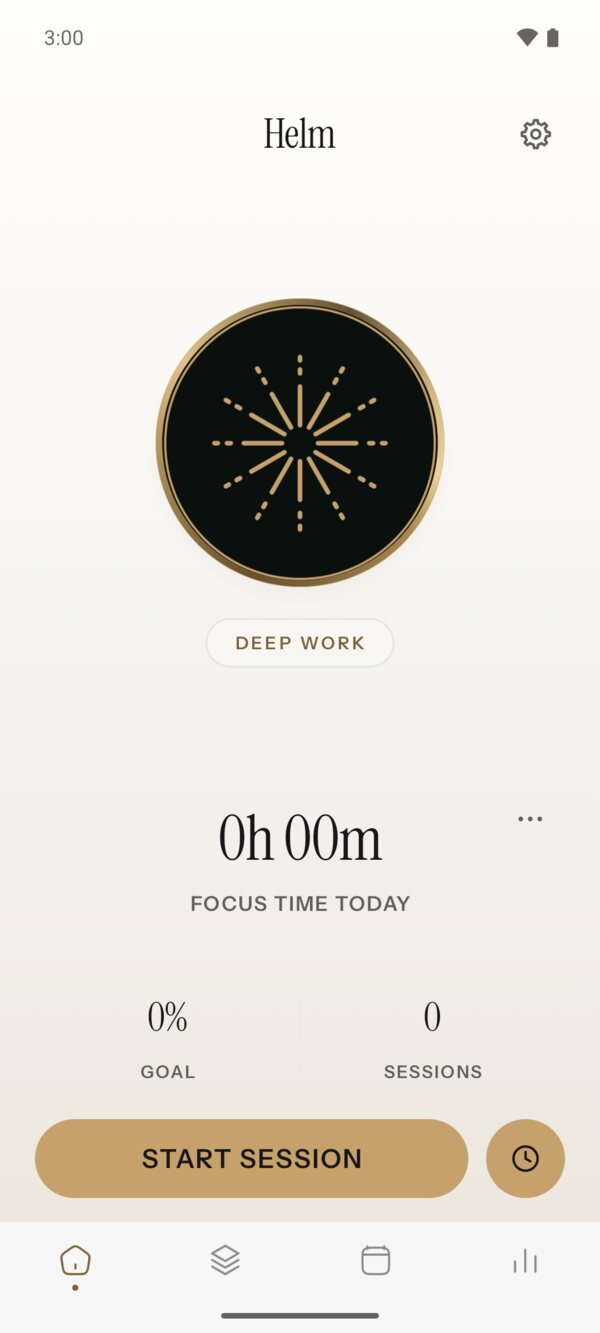
- The mode you'll start. Tap it to switch modes.
- START SESSION opens the sheet below. The session runs until you end it.
- The clock starts a timer instead: 45 minutes, 1 hour, 2 hours, or any length from 15 minutes to 24 hours. You start a timer by holding the button, and it ends on its own.
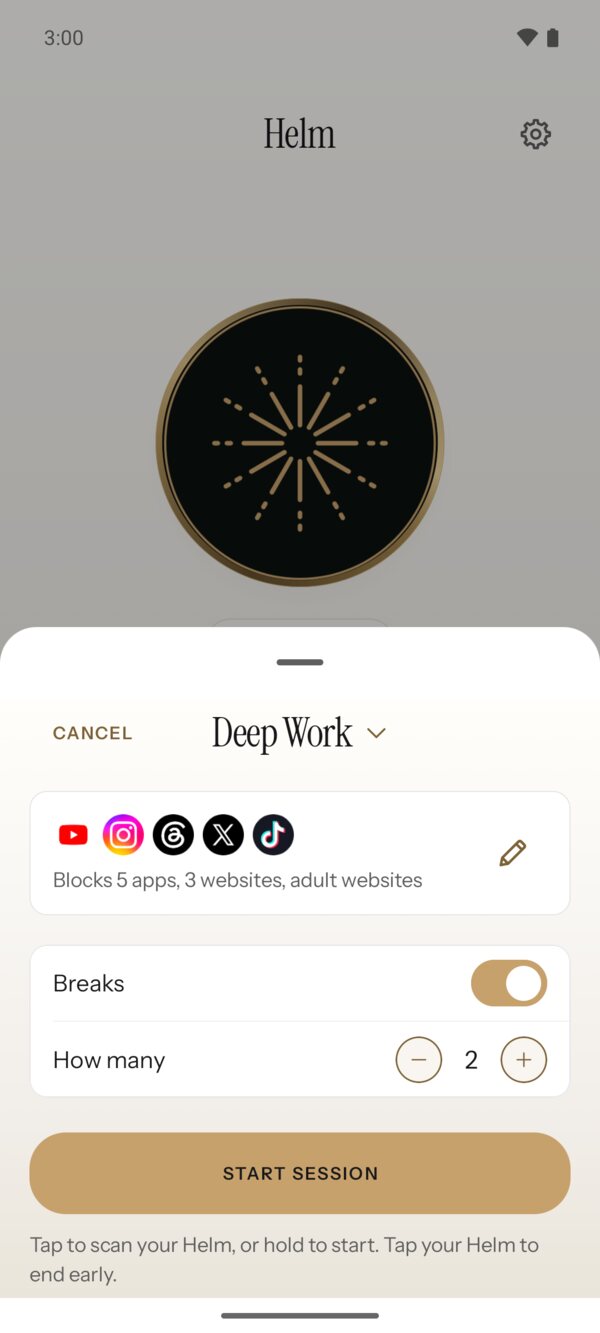
- What the mode blocks. The pencil changes it.
- Turn on Breaks and set how many you'll allow, up to 4. Each one lasts 15 minutes.
- Hold START SESSION for two seconds to start. Or tap it once and hold your phone to your Helm.
If Accessibility isn't on yet, this sheet asks you to allow it first.
Put your Helm away
Pick a spot a few steps from where you work, like a drawer, a shelf or by the front door. Ending a session early means getting up to tap it.
End a session early
Tap END SESSION on Home and this sheet opens.
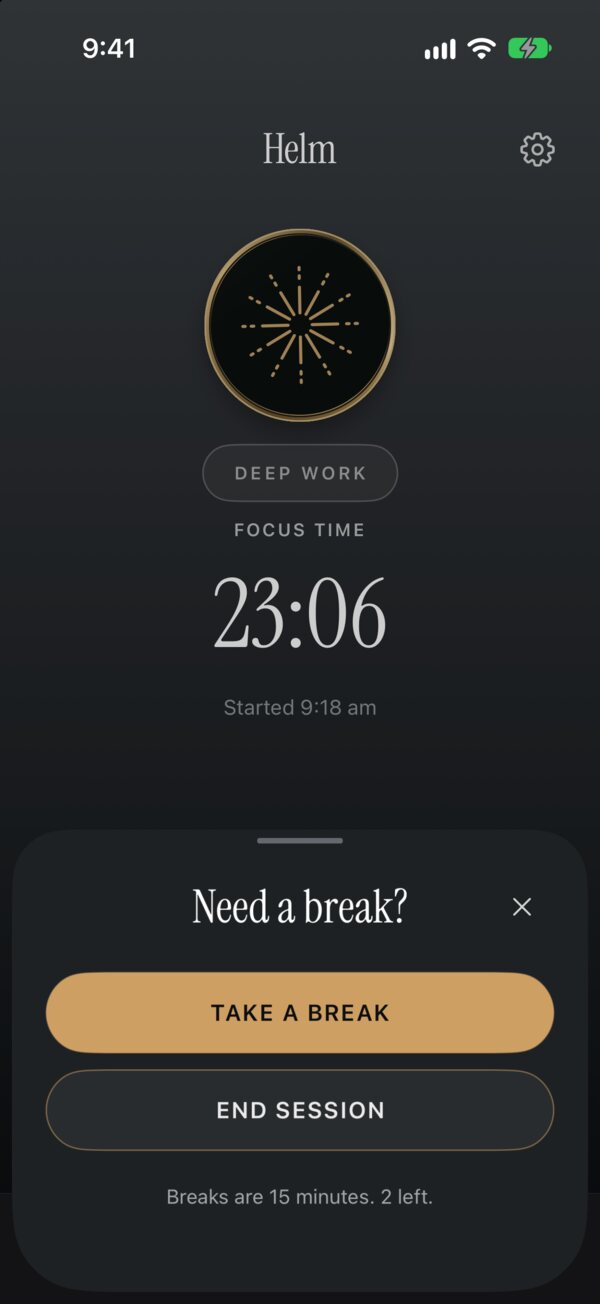
- If you have breaks left, TAKE A BREAK pauses for 15 minutes, then the session carries on.
- END SESSION brings up Ready to Scan. Hold your phone to your Helm. When it reads, the Helm on your screen lights up and your Focus Summary opens.
Timers, and schedules with an end time, finish on their own. You only need your Helm to end early.
Click End early. On Easy you wait 5 seconds, on Medium and Hard you wait longer, and on Hardcore the session can't end early. To pause instead, click Take a break.
Tap END SESSION on Home. If you have breaks left, this sheet opens. If not, Helm goes straight to the scan.
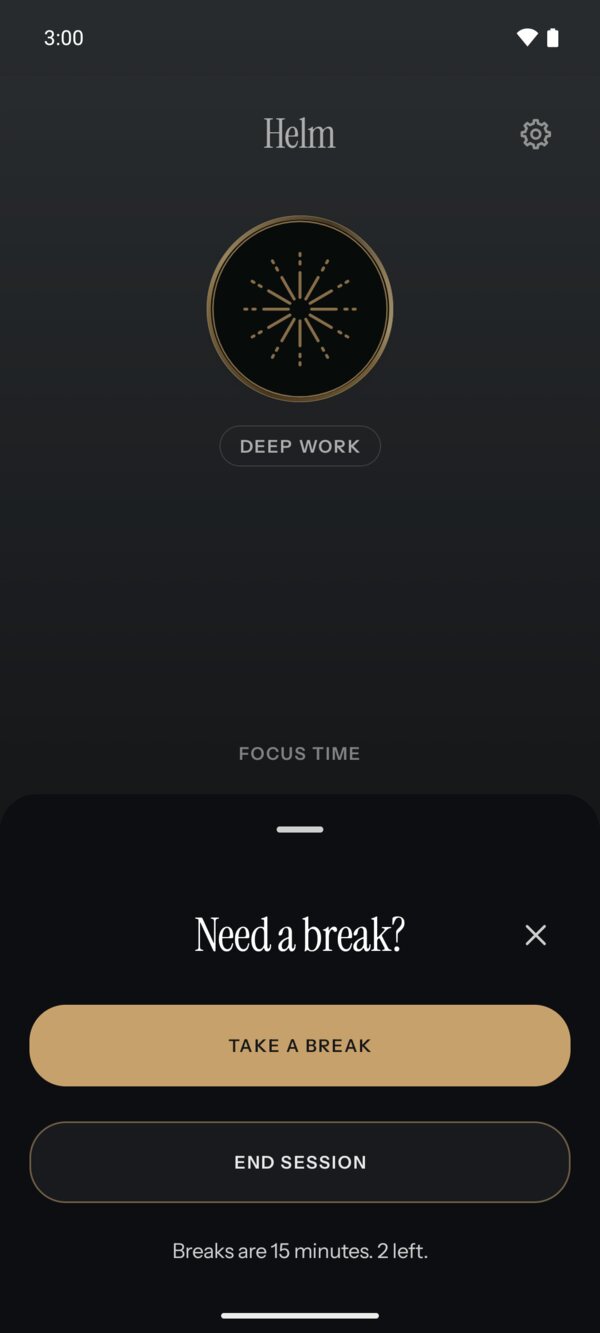
- TAKE A BREAK pauses for 15 minutes, then the session carries on.
- END SESSION opens the scan. Hold your phone to your Helm. When it reads, the app shows Session ended and your Focus summary opens.
Timers, and schedules with an end time, finish on their own. You only need your Helm to end early.
Set a schedule
Schedules start sessions for you, and up to 8 can be on at once. Add one from the Schedules tab. If the tab shows SESSIONS and ALARMS, use SESSIONS.
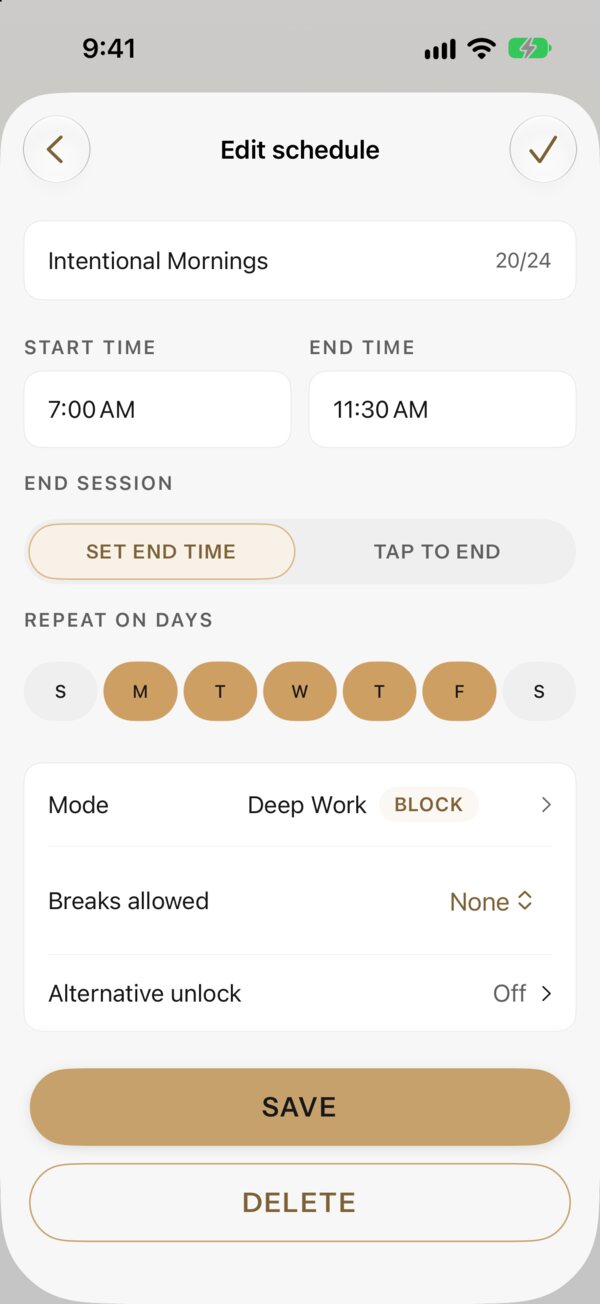
- When the session starts and stops.
- Set end time ends the session at the end time. Tap to end keeps it going until you tap your Helm or the next schedule starts.
- The days it repeats.
- The mode it runs.
- How many 15-minute breaks it allows.
- Alternative unlock goals, the same as on the session sheet.
Schedules start sessions for you, and up to 8 can be on at once. Add one from the Schedules tab, under SESSIONS.
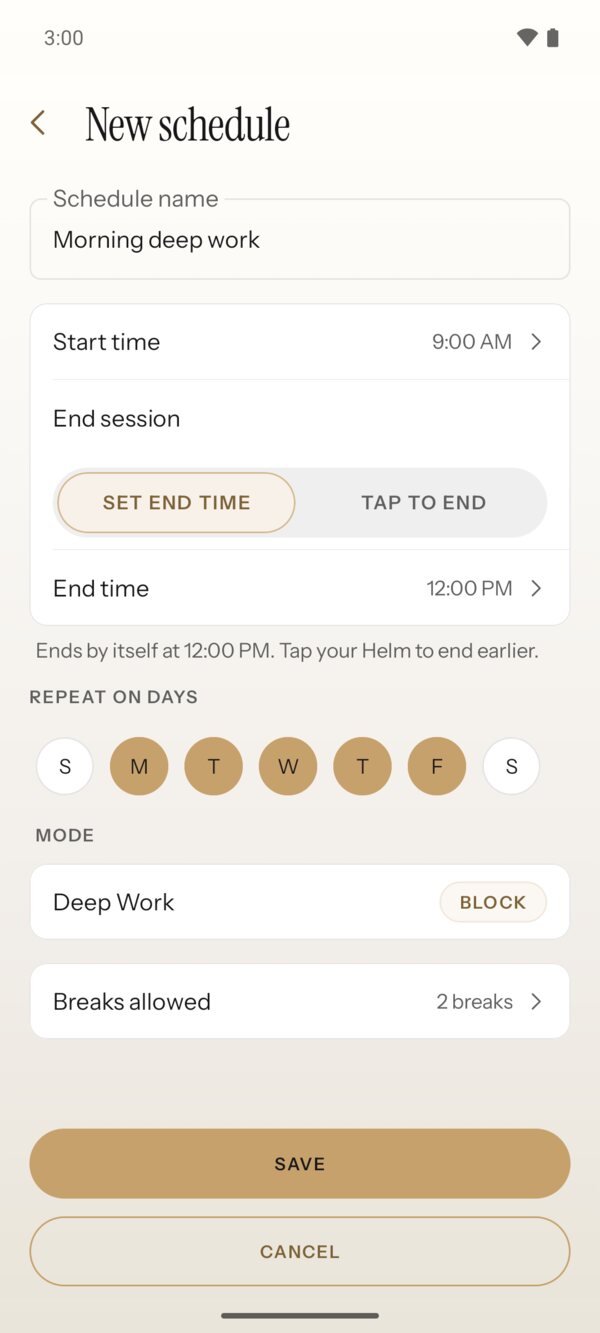
- When the session starts.
- SET END TIME ends the session at the end time. TAP TO END keeps it going until you tap your Helm.
- The days it repeats.
- The mode it runs.
- How many 15-minute breaks it allows.
Open Schedules and add one. Set its name, mode, difficulty, days, and a start and end time. A schedule can't run past midnight, and two schedules that are on can't overlap. Helm Background needs to be on for schedules to start when Helm isn't open.
Lifelines on Hardcore
On Hardcore, a lifeline ends the session when you have to get out. That session doesn't count toward your focus stats. A new one arrives each month, and you can use one offline lifeline a week. If Guardian Mode is on, your Guardian ends it instead.
When your Helm isn't with you
Emergency lifelines end a session when your Helm is somewhere else. New accounts start with 5 and get one more each month, up to 12. Find them in Settings › Sessions › Emergency lifelines. To earn your way out instead, set an Alternative unlock on the start sheet: steps, exercise minutes or focus time.
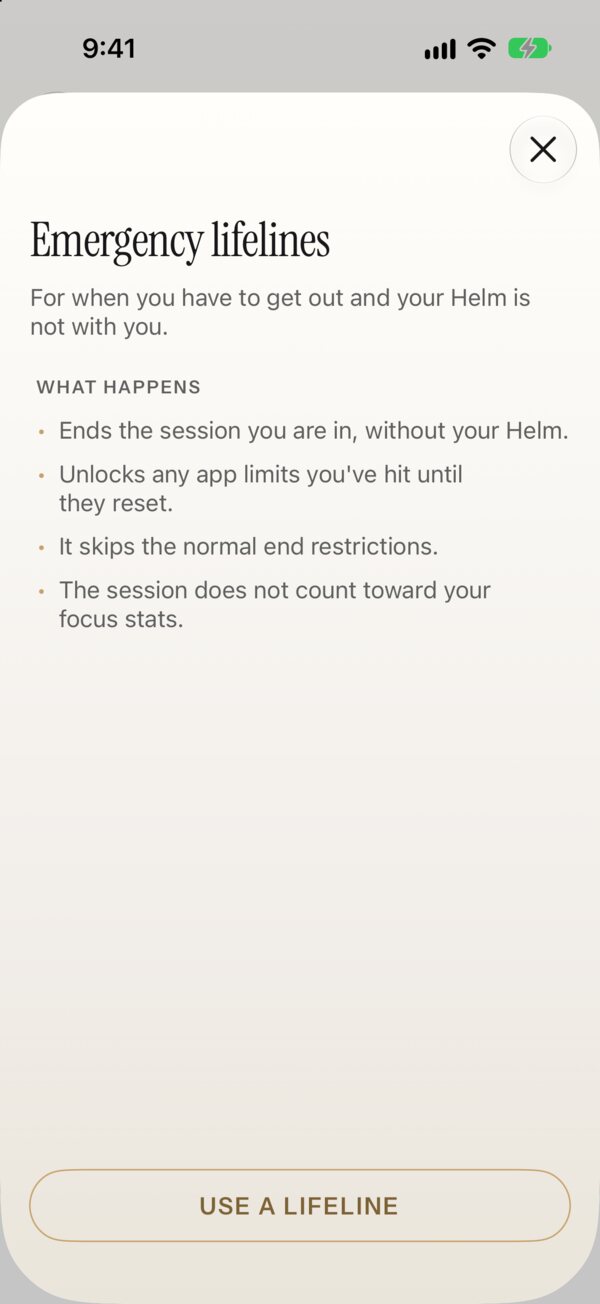
- USE A LIFELINE ends the session now. That session doesn't count toward your focus stats.
Emergency lifelines end a session when your Helm is somewhere else. New accounts start with 5 and get one more each month, up to 12. Find them in Settings › Sessions › Emergency lifelines while a session is running. Stuck some other way? Open Settings › Support › If Helm won't let you out.
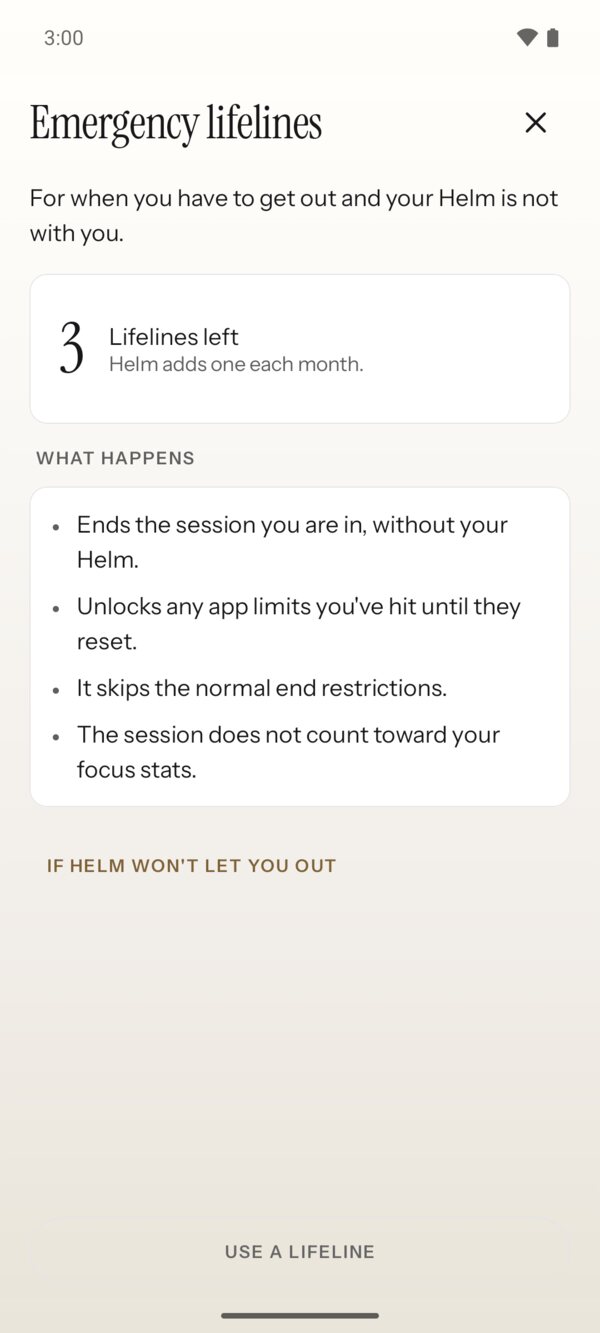
- How many you have left. Helm adds one each month.
- USE A LIFELINE ends the session now. That session doesn't count toward your focus stats.
If something here doesn't match what you see, or your Helm won't scan, email support@bestself.co.